Keeping IP Addresses Out of Your Crash Reports
Our games send a crash report when something goes wrong. When we checked our privacy policies against the real settings, one project was storing IP addresses the policy said we didn't keep. Here is where IP addresses come from in crash reports and the two settings that control them.
All three of our games send a crash report when something goes wrong, so we can find and fix the bug. We use Sentry for this. This week we wrote privacy policies for Firebase Zero and Olympegs, and we checked every sentence about crash reports against the actual Sentry settings, not just the game code.
One sentence was wrong. The policy said we don’t store IP addresses, and one of our Sentry projects was storing them. The fix took a couple of minutes. Finding it is the part worth writing about, because the setting that mattered wasn’t in the code at all.
The examples below use Sentry because that’s what we use. The same questions apply to any crash reporting service.
Why a crash report has an IP address at all
When a game sends a report, it makes a web request to the reporting service. Every web request comes from an IP address, and the service can’t receive the report without seeing it.
So the question isn’t whether the service sees the address. It’s whether the address gets saved with the report, and what else gets worked out from it.
Two settings, in two different places
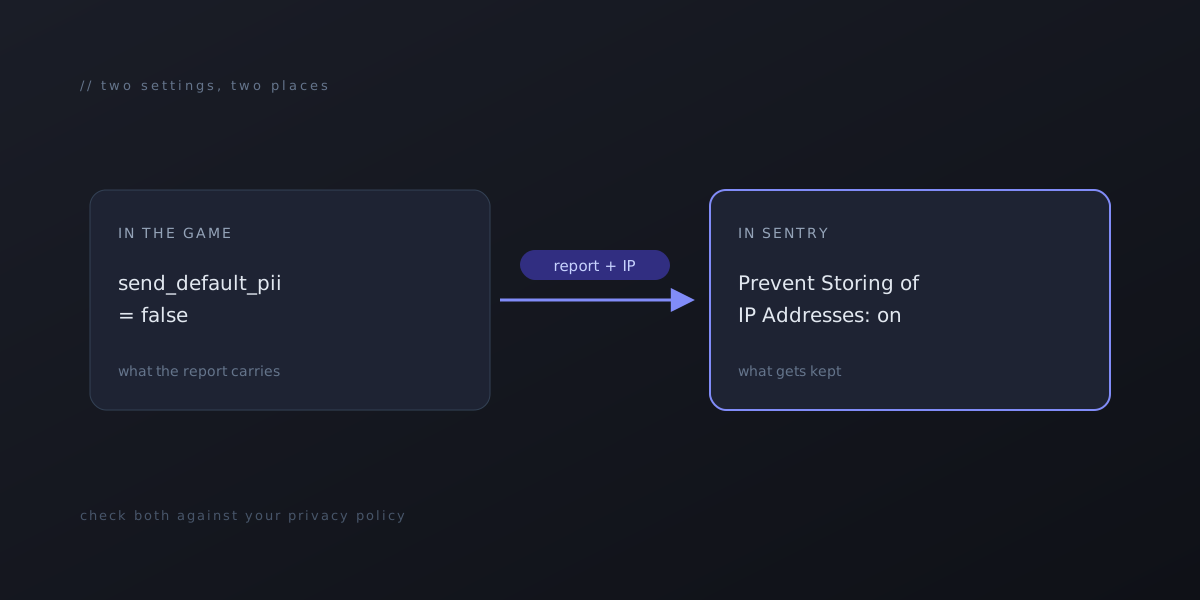
In the game’s code, the reporting library decides what goes into the report. Sentry’s libraries have an option called “send default PII” (personally identifiable information). It’s off by default, and we keep it off in all three games:
// Unity (Firebase Zero, Olympegs)
o.SendDefaultPii = false;
# Godot (Mudheim)
options.send_default_pii = falseWith it off, the library doesn’t add things like the player’s IP address, computer name or device ID to the report.
In Sentry itself, a project setting decides what gets saved when a report arrives. It’s under Project Settings > Security & Privacy, and it’s called “Prevent Storing of IP Addresses”. Each project has its own switch.
The code setting controls what you send. The project setting controls what gets kept. If your privacy policy says you don’t store IP addresses, the project setting is the one that makes it true for every report, whichever version of the game a player is running and whatever a future library update changes.
Firebase Zero and Mudheim had the project switch on. Olympegs did not. The code was the same in all three, so reading the code would never have caught it. Opening the settings page did.
Turn it on once for every project
Sentry has the same switch at the organization level, under Organization Settings > Security & Privacy. Turned on there, it covers every project in the organization, including ones you haven’t created yet. If you have more than one project, that’s the better place for it, because a new project is exactly where this gets missed.
Approximate location is a separate question
Turning off IP storage doesn’t remove location. Sentry’s documentation says it works out a rough location (country and city) from the IP address when a report arrives, and keeps that even with IP storage turned off. If you don’t want location either, Sentry’s Advanced Data Scrubbing can remove it with this rule:
[Remove] [Anything] from [$user.geo.**]We keep approximate location for now. Some bugs only show up with one language or one region’s settings, and a rough location helps us spot them. Our privacy policies say this plainly: Sentry sees the address, we’ve set it not to store it, and it may keep an approximate location with the report. Either choice is fine. What matters is that the policy describes what actually happens.
The IP address isn’t the only thing that identifies someone
Once we were looking, a desktop crash report had a few other places a player could be identified:
- File paths. Error messages on Windows often include the user folder, like
C:\Users\<name>\, and that folder name is usually the person’s own name. - The computer’s name. Plenty of Windows PCs are named after their owner. Sentry’s Unity library only sends it if you set it yourself or turn on default PII, and our games clear it again before sending anyway.
- Names typed into the game. Player names, save names and character names can end up in log lines.
- Steam names and Steam IDs, if the game uses Steam.
- Screenshots and full log files, which some libraries can attach automatically.
Our games handle these in the step that runs just before a report leaves the computer (Sentry calls it “before send”). It takes the user folder and any names out of messages and errors, removes the computer name and user details, and drops a log line entirely if it names someone and can’t be cleaned. Screenshots and full log files are switched off.
Sentry can scrub some of this on its servers too, but cleaning it in the game means it never leaves the player’s computer in the first place.
A short check for your own projects
- Open each crash reporting project’s privacy settings and confirm IP storage is off, or turn it on once at the organization level.
- Search your code for the default PII option and confirm it’s off.
- Decide whether you keep approximate location, and add the scrubbing rule if you don’t.
- Send a test report from a development build and open it in Sentry. Look for your own user folder, computer name, IP address and anything you typed into the game.
- Read your privacy policy next to that test report and the settings page. Every sentence about crash reports should match something you can see.
The last step is the one that caught our mistake.